
Start with a private group
In the app's Groups area, you can create a group or join one with an invite code. The code is meant to be shared with the runners you want to include. A new group does not arrive with a ready-made audience or a public community feed; you build it with people you know.
Choose an ongoing board or a challenge
An ongoing leaderboard stays open as members record runs. A challenge has a chosen end date, giving the group a defined finish line. Both formats use the same broad idea: your own outdoor runs contribute to a shared view of what the group has done. If you are creating a challenge, make the date clear when you invite people so everyone knows the window.
Read the table carefully
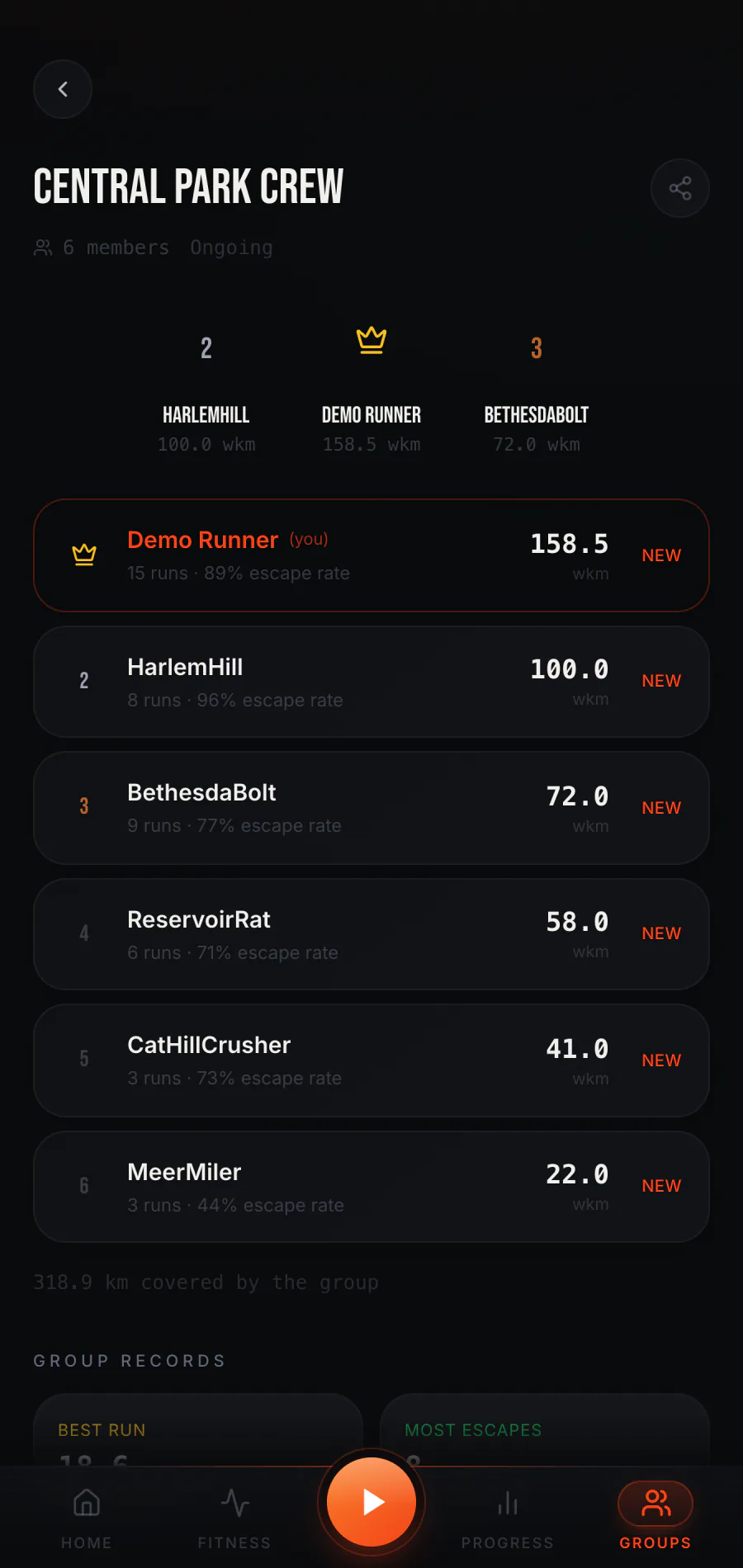
The group board shows rank and weighted kilometres, alongside actual kilometres, runs, chases, escapes, and escape rate. Weighted kilometres are the ranking measure in the app. The actual distance figure is separate, so a rank should not be described as simply “who ran the farthest.” The group can also show a podium, group records such as a best run or most escapes, recent activity, and member comparisons.
Keep the competition in perspective
A leaderboard can add a reason to get out the door, but it is a record of app activity, not a judgement of anyone's fitness or health. Different runners have different time, routes, and circumstances. A Just Run day can still be part of the running record. For a closer look at what you can track for yourself, visit the Progress guide; for the tools that help shape your next run, see Fitness.
What to expect when you first open it
If you have not created or joined a group, the Groups screen offers those two actions. After joining, the board fills as members save eligible runs. Some records and comparisons need enough activity to appear. See the Inside the app page for a genuine group screen populated by fictional test members and simulated run history.
Explore the full Raptor Run experience.
How the app works